Quick notes, right beside the page.
Notakuna opens in Chrome’s side panel, so you can jot something down without leaving the page you’re on, and find it again when you come back.
No account needed. Your notes stay on your device.
What you can do
-
Write in the side panel
Click the toolbar icon and start a note next to whatever you’re reading. Double-click a note’s text to edit it.
-
Format as you type
Type / for headings, lists, to-dos, quotes, code and dividers.
-
Notes for every page
Attach a note to a web page, and it’s waiting under Current tab whenever you come back to it.
-
Save what you see
Right-click selected text or a picture to make it a note, or add it to the one that’s open. Screenshots of the tab go right where you’re writing.
-
Search and pin
Find a note by any word in it, and keep the important ones on top.
-
Export and back up
Save a note as Markdown, PDF, plain text or Word. Back up every note to one file and bring them to another computer.
-
Private by design
Notes are stored in your browser and never sent anywhere. No sign-up. Tab and screenshot access are optional, and off until you turn them on.
-
Easy to get started
A short tour shows you around the first time, and a plain-language FAQ answers the rest.
A look inside
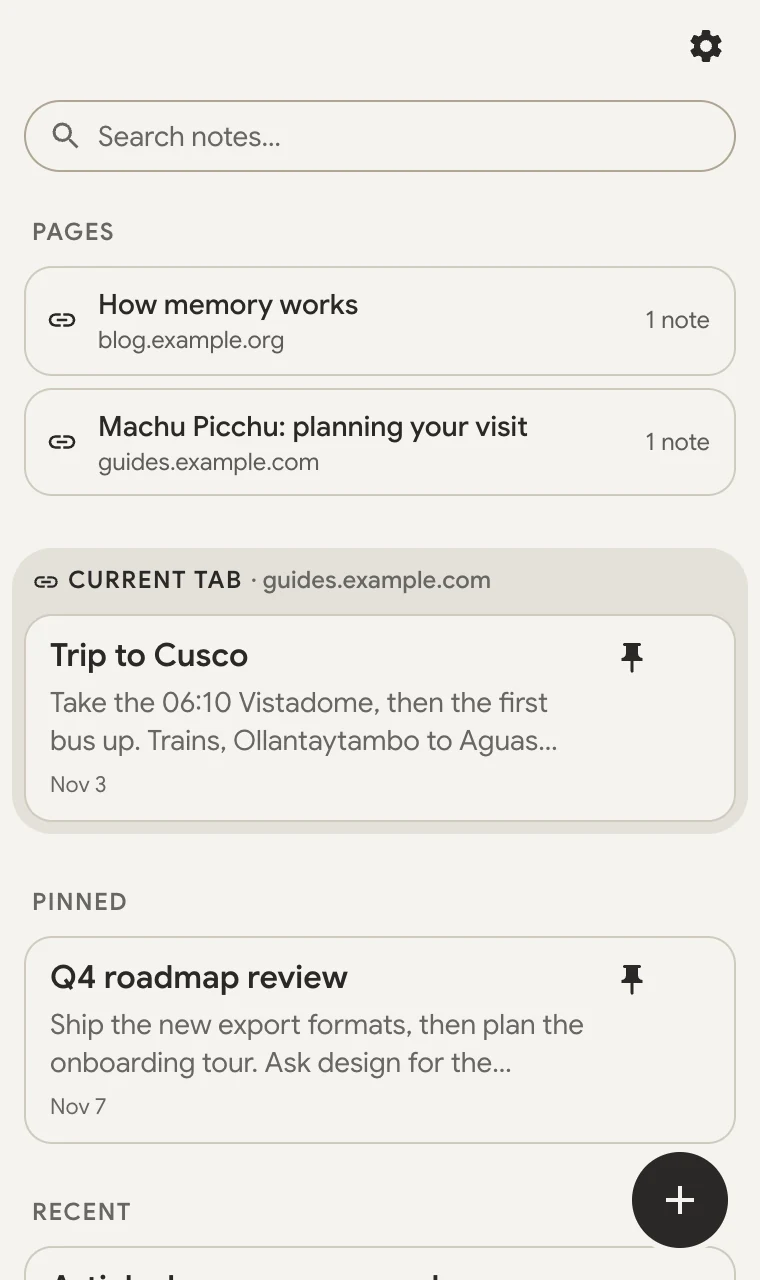
Everything in one panel
Pages with notes are one click away, and the page you’re on gets its own section.
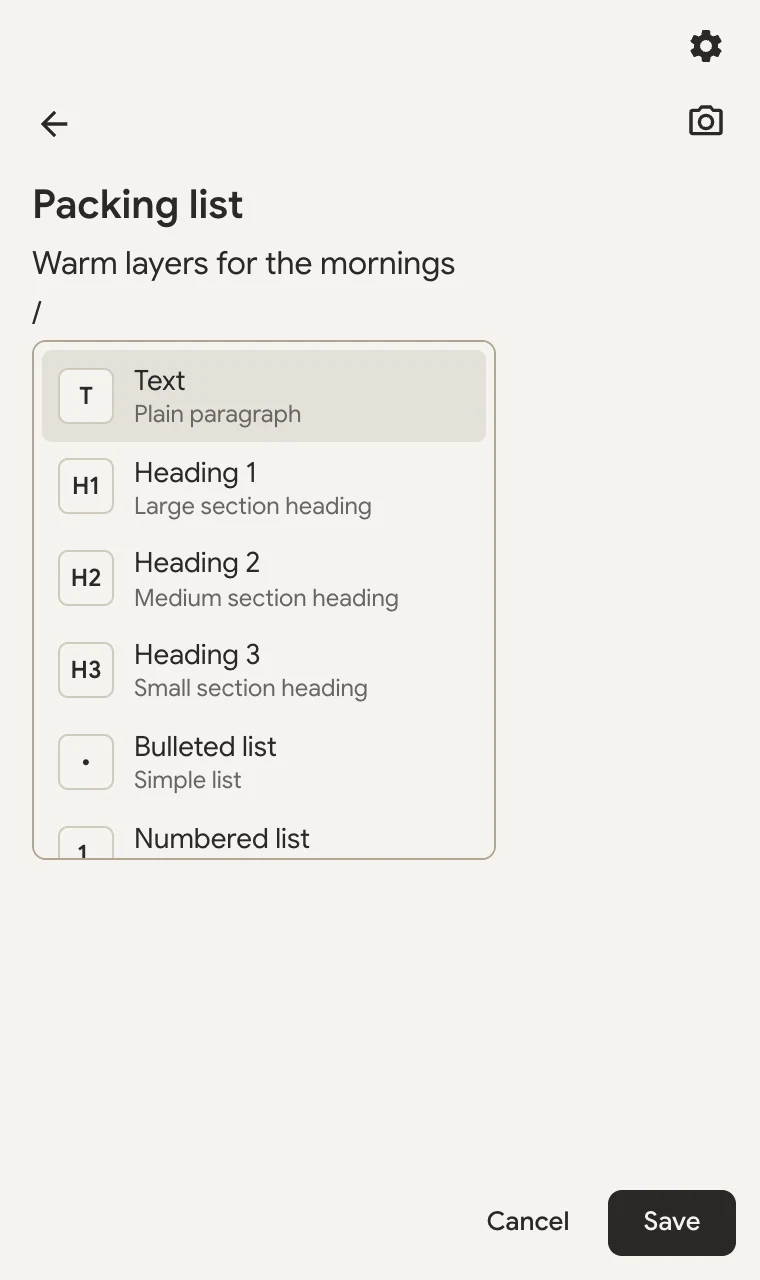
Write with a slash
Type / to turn a line into a heading, a list, a to-do and more.
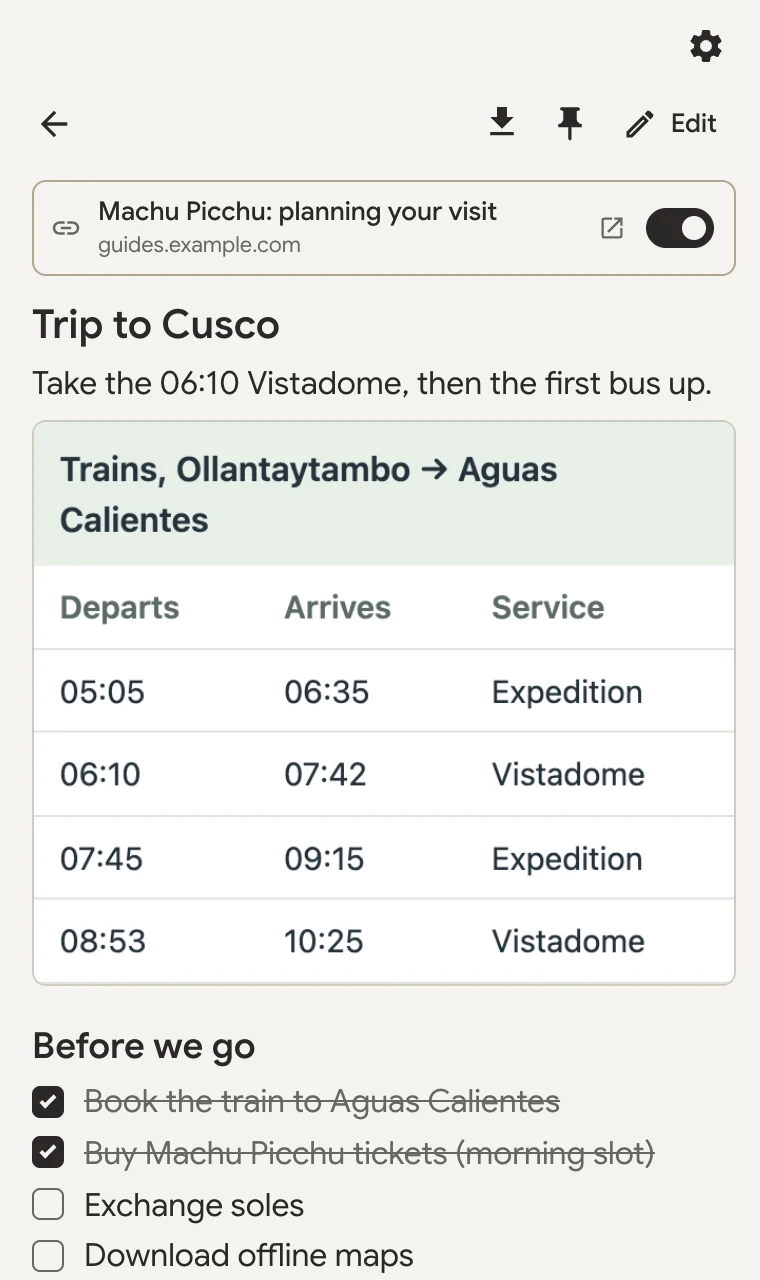
Pages, screenshots and export
Attach a note to a page, add a screenshot of it, and export it when you’re done.
Questions & answers
The questions people ask most before installing.
Where are my notes saved? Are they private?
Your notes are saved only in Chrome, on this computer. There’s no account, nothing is sent to us or anyone else, and Notakuna works without an internet connection.
Removing the extension from Chrome deletes your notes too, so make a backup first.
How do I open Notakuna?
Click the Notakuna icon in Chrome’s toolbar, at the top right of the window. Your notes open in a panel on the side, so you can keep browsing while you write.
Don’t see the icon? Click the puzzle piece (Extensions) in the toolbar, then the pin next to Notakuna. It will stay in the toolbar from then on.
Can I link a note to a website?
Yes. Go to the website, open a saved note in Notakuna and turn on Attach to current tab. From then on, the note shows up under Current tab whenever you visit that page again, and the page is listed under Pages on the main screen.
The first time, Notakuna asks for tab access. To attach every new note to the page you’re on, turn on Auto attach to tab in Settings.
Why does Chrome say Notakuna can “Read your browsing history”?
That’s the name Chrome gives to tab access. Notakuna only uses it to see the address and title of the tab you’re on, so it can attach notes to pages. It never reads what’s on the page and never sends anything anywhere. You can turn it off anytime in Settings › Security & Permissions.
How do I move my notes to another computer?
Notes don’t move between computers by themselves; you copy them with a backup file:
- Open Settings (the gear at the top right of Notakuna), then Backup & Sync.
- Press Export notes. A backup file is saved to your Downloads.
- On the other computer, install Notakuna, go to the same place and press Import notes. Pick the backup file. Notes already there are kept.
Keep your next thought within reach.
Get Notakuna for ChromeSupport the project
Notakuna has no ads, no accounts and no tracking. If it’s part of your day, a donation helps keep it that way.